> ## Documentation Index
> Fetch the complete documentation index at: https://continue-docs.mintlify.site/llms.txt
> Use this file to discover all available pages before exploring further.
# How to Understand Configuration
> Learn how to configure AI development assistance in Continue, including setup, management, and best practices
Every developer has unique needs when it comes to AI assistance. Continue provides flexible configuration options to match your workflow, whether you want quick setup or full control.
## How to Access Your Configuration
To access your configuration:
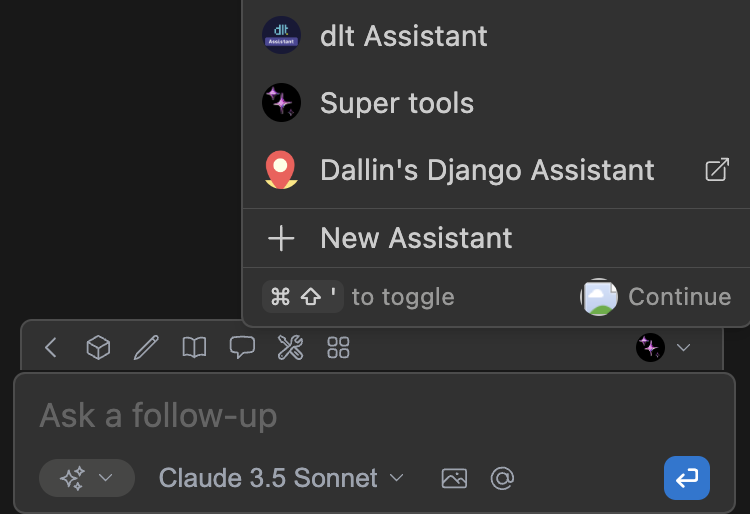
1. Open the Continue Chat sidebar by pressing cmd/ctrl + L (VS Code) or cmd/ctrl + J (JetBrains)
2. Click the Config selector above the main chat input
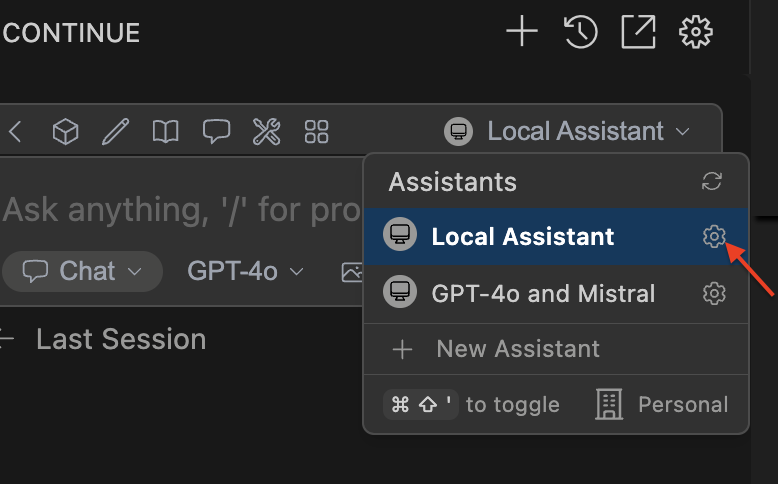
3. Hover over a config and click the `gear` icon to edit
## Configuration Overview
Continue uses a `config.yaml` file that gives you complete control over every aspect of your experience, with all configuration stored directly on your machine.
### Why Use Local Configuration?
**Complete Control and Privacy**
* **Your Data, Your Rules**: All configuration stays on your machine -- perfect for air-gapped environments or strict data policies
* **Version Control Integration**: Check your `config.yaml` into git alongside your code, ensuring reproducible environments
* **Offline Capability**: Once configured, no internet connection needed (assuming you're using local models)
* **Unlimited Customization**: Access every configuration option, experimental feature, and advanced setting
### How to Set Up Your Config
Local configuration lives in a single YAML file in your home directory:
**File Locations:**
* macOS/Linux: `~/.continue/config.yaml`
* Windows: `%USERPROFILE%\.continue\config.yaml`
**Quick Access Method:**
1. Open the configs dropdown in your IDE
2. Click the gear icon next to "Local Config"
3. The `config.yaml` file opens in your editor
### The Config Experience
When you edit your `config.yaml`, Continue provides intelligent autocomplete for all available options. Save the file, and Continue automatically reloads your configuration -- no restart required.
The first time you use Continue, it generates a `config.yaml` with sensible defaults. From there, you can customize everything from model selection to context providers, slash commands, and more.
For the complete configuration reference, see our [config.yaml documentation](/reference).
## Best Practices
1. **Version Control Your Config**: Treat your `config.yaml` like code -- commit it, review changes, and maintain history
2. **Use Environment Variables**: For sensitive data, reference environment variables instead of hardcoding values
3. **Document Your Setup**: Add comments to your config explaining non-obvious choices
4. **Keep a Backup**: Before major changes, save a working copy of your configuration
5. **Create Specialized Configs**: Make different configs for different contexts (frontend, backend, DevOps)
## Troubleshooting
### Config Issues
**Config Not Loading?**
* Verify file location matches your OS
* Check YAML syntax (Continue will show errors)
* Ensure file permissions allow reading
**Autocomplete Not Working?**
* Update to the latest Continue version
* Check that you're editing the correct file
## Next Steps
Now that you understand both configuration approaches, you're ready to dive deeper:
* **[Explore the Config Reference](/reference)**
* **For Everyone**: [Discover Available Models](/customize/model-providers/overview)
Remember, the best configuration is the one that helps you code more effectively. Start simple, experiment freely, and gradually refine your setup as you discover what works best for your workflow.
Happy coding with Continue! 🚀
 ## Configuration Overview
Continue uses a `config.yaml` file that gives you complete control over every aspect of your experience, with all configuration stored directly on your machine.
### Why Use Local Configuration?
**Complete Control and Privacy**
* **Your Data, Your Rules**: All configuration stays on your machine -- perfect for air-gapped environments or strict data policies
* **Version Control Integration**: Check your `config.yaml` into git alongside your code, ensuring reproducible environments
* **Offline Capability**: Once configured, no internet connection needed (assuming you're using local models)
* **Unlimited Customization**: Access every configuration option, experimental feature, and advanced setting
### How to Set Up Your Config
Local configuration lives in a single YAML file in your home directory:
**File Locations:**
* macOS/Linux: `~/.continue/config.yaml`
* Windows: `%USERPROFILE%\.continue\config.yaml`
**Quick Access Method:**
1. Open the configs dropdown in your IDE
2. Click the gear icon next to "Local Config"
3. The `config.yaml` file opens in your editor
## Configuration Overview
Continue uses a `config.yaml` file that gives you complete control over every aspect of your experience, with all configuration stored directly on your machine.
### Why Use Local Configuration?
**Complete Control and Privacy**
* **Your Data, Your Rules**: All configuration stays on your machine -- perfect for air-gapped environments or strict data policies
* **Version Control Integration**: Check your `config.yaml` into git alongside your code, ensuring reproducible environments
* **Offline Capability**: Once configured, no internet connection needed (assuming you're using local models)
* **Unlimited Customization**: Access every configuration option, experimental feature, and advanced setting
### How to Set Up Your Config
Local configuration lives in a single YAML file in your home directory:
**File Locations:**
* macOS/Linux: `~/.continue/config.yaml`
* Windows: `%USERPROFILE%\.continue\config.yaml`
**Quick Access Method:**
1. Open the configs dropdown in your IDE
2. Click the gear icon next to "Local Config"
3. The `config.yaml` file opens in your editor
 ### The Config Experience
When you edit your `config.yaml`, Continue provides intelligent autocomplete for all available options. Save the file, and Continue automatically reloads your configuration -- no restart required.
The first time you use Continue, it generates a `config.yaml` with sensible defaults. From there, you can customize everything from model selection to context providers, slash commands, and more.
For the complete configuration reference, see our [config.yaml documentation](/reference).
## Best Practices
1. **Version Control Your Config**: Treat your `config.yaml` like code -- commit it, review changes, and maintain history
2. **Use Environment Variables**: For sensitive data, reference environment variables instead of hardcoding values
3. **Document Your Setup**: Add comments to your config explaining non-obvious choices
4. **Keep a Backup**: Before major changes, save a working copy of your configuration
5. **Create Specialized Configs**: Make different configs for different contexts (frontend, backend, DevOps)
## Troubleshooting
### Config Issues
**Config Not Loading?**
* Verify file location matches your OS
* Check YAML syntax (Continue will show errors)
* Ensure file permissions allow reading
**Autocomplete Not Working?**
* Update to the latest Continue version
* Check that you're editing the correct file
## Next Steps
Now that you understand both configuration approaches, you're ready to dive deeper:
* **[Explore the Config Reference](/reference)**
* **For Everyone**: [Discover Available Models](/customize/model-providers/overview)
Remember, the best configuration is the one that helps you code more effectively. Start simple, experiment freely, and gradually refine your setup as you discover what works best for your workflow.
Happy coding with Continue! 🚀
### The Config Experience
When you edit your `config.yaml`, Continue provides intelligent autocomplete for all available options. Save the file, and Continue automatically reloads your configuration -- no restart required.
The first time you use Continue, it generates a `config.yaml` with sensible defaults. From there, you can customize everything from model selection to context providers, slash commands, and more.
For the complete configuration reference, see our [config.yaml documentation](/reference).
## Best Practices
1. **Version Control Your Config**: Treat your `config.yaml` like code -- commit it, review changes, and maintain history
2. **Use Environment Variables**: For sensitive data, reference environment variables instead of hardcoding values
3. **Document Your Setup**: Add comments to your config explaining non-obvious choices
4. **Keep a Backup**: Before major changes, save a working copy of your configuration
5. **Create Specialized Configs**: Make different configs for different contexts (frontend, backend, DevOps)
## Troubleshooting
### Config Issues
**Config Not Loading?**
* Verify file location matches your OS
* Check YAML syntax (Continue will show errors)
* Ensure file permissions allow reading
**Autocomplete Not Working?**
* Update to the latest Continue version
* Check that you're editing the correct file
## Next Steps
Now that you understand both configuration approaches, you're ready to dive deeper:
* **[Explore the Config Reference](/reference)**
* **For Everyone**: [Discover Available Models](/customize/model-providers/overview)
Remember, the best configuration is the one that helps you code more effectively. Start simple, experiment freely, and gradually refine your setup as you discover what works best for your workflow.
Happy coding with Continue! 🚀