> ## Documentation Index
> Fetch the complete documentation index at: https://continue-docs.mintlify.site/llms.txt
> Use this file to discover all available pages before exploring further.
# How to Use Continue CLI (cn)
> Learn how to use Continue's command-line interface for context engineering, automated coding tasks, and headless development workflows with customizable models, rules, and tools
export const OSAutoDetect = () => {
return ;
};
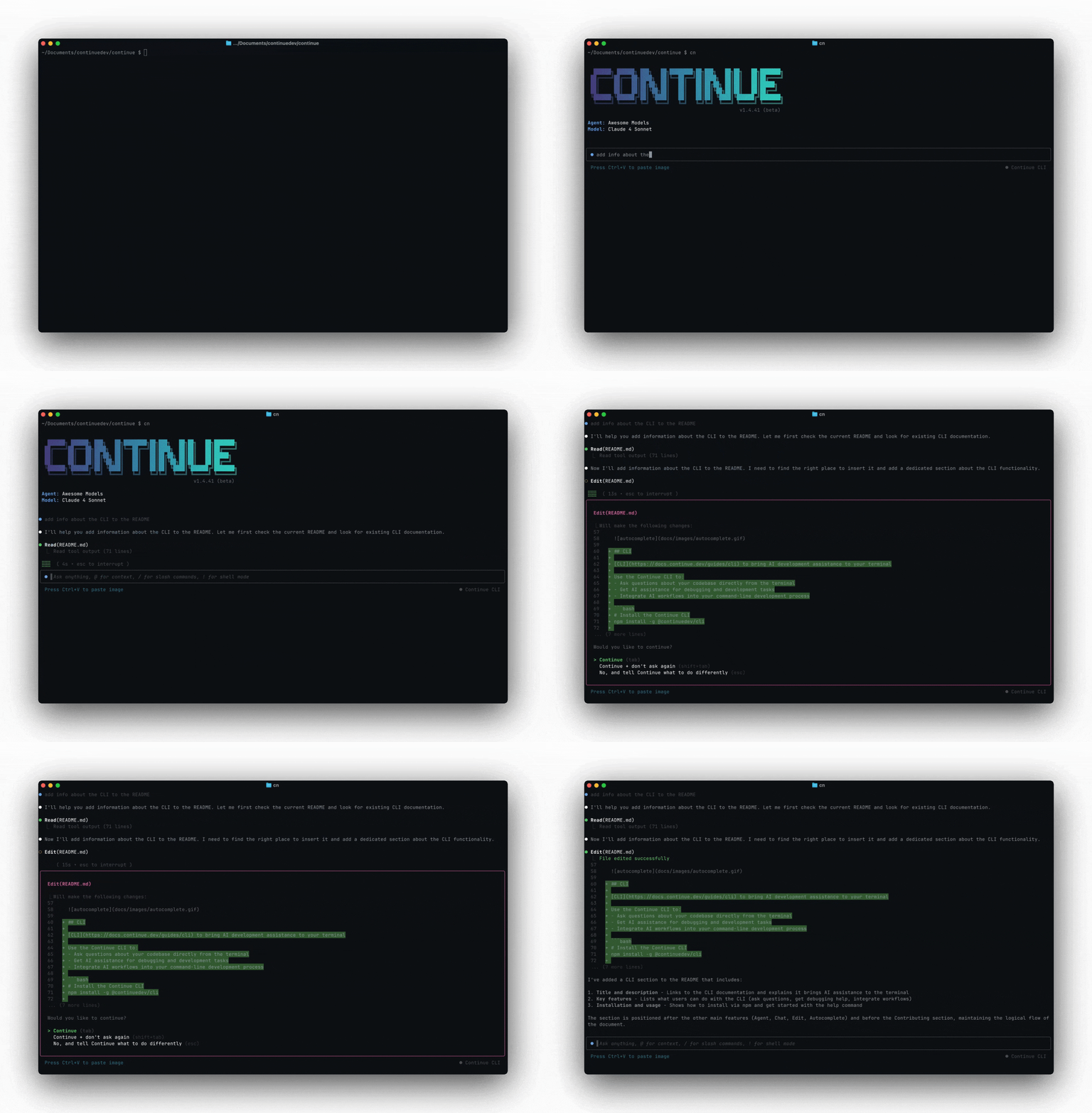
`cn` is an open-source, modular coding agent for the command line.
It provides a battle-tested agent loop so you can simply plug in your model, rules, and tools.
 ## Quick Start
```bash theme={null}
curl -fsSL https://raw.githubusercontent.com/continuedev/continue/main/extensions/cli/scripts/install.sh | bash
```
```powershell theme={null}
irm https://raw.githubusercontent.com/continuedev/continue/main/extensions/cli/scripts/install.ps1 | iex
```
If you already have Node.js 20+:
```bash theme={null}
npm i -g @continuedev/cli
```
Then start using it:
```bash theme={null}
# Interactive mode
cn
# Headless mode
cn -p "Generate a conventional commit name for the current git changes"
```
## How to Use Continue CLI - Basic Usage
Out of the box, `cn` comes with tools that let it understand your codebase, edit files, run terminal commands, and more (if you approve). You can ask `cn` to:
* Fix failing tests
* Find something in the codebase
* Execute a refactor
* Write a new feature
* And a lot more
Use '@' to give it file context, or '/' to run slash commands.
If you want to resume a previous conversation, run `cn --resume`.
## How to Use Headless Mode (`-p` flag)
In headless mode, `cn` will only output its final response, making it perfect for Unix Philosophy-style scripting and automation. For example, you could pipe your git diff into `cn` to generate a commit message, and write this to a file:
```bash theme={null}
echo "$(git diff) Generate a conventional commit name for the current git changes" | cn -p > commit-message.txt
```
## How to Configure Continue CLI
`cn` uses [`config.yaml`](/reference), the exact same configuration file as Continue. This means that you can use your existing local configuration.
To switch between configurations, you can use the `/config` slash command in `cn`, or you can start it with the `--config` flag (e.g. `cn --config continuedev/default-cli-config` or `cn --config ~/.continue/config.yaml`).
### How to Add Custom Models
Learn how to add custom models [here](/customize/overview). Then, you can use the `/model` slash command to switch between them in `cn`.
### How to Configure Rules
`cn` supports [rules](/customize/deep-dives/rules) in the same way as the Continue IDE extensions. You can also use the `--rule` flag to manually include a rule. For example, `cn --rule nate/spanish` will tell `cn` to always speak in Spanish.
### How to Configure Tools
`cn` supports MCP tools, which can be configured in the [same way](/customize/deep-dives/mcp) as with the Continue IDE extensions.
#### How to Set Tool Permissions
`cn` includes a tool permission system to make sure you approve of the agent's actions. It will begin with minimal permissions but as you approve tool calls, it will add policies to `~/.continue/permissions.yaml` to remember your preferences.
If you want to explicitly allow or deny tools for a single session, you can use the command line flags `--allow`, `--ask`, and `--exclude`. For example:
```bash theme={null}
# Always allow the Write tool
cn --allow Write()
# Always ask before running curl
cn --ask Bash(curl*)
# Never use the Fetch tool
cn --exclude Fetch
```
## Troubleshooting
Run `cn` with the `--verbose` flag to see more detailed logs. These will be output to `~/.continue/logs/cn.log`.
If you have feedback on the beta, please [file a GitHub issue](https://github.com/continuedev/continue/issues).
## Quick Start
```bash theme={null}
curl -fsSL https://raw.githubusercontent.com/continuedev/continue/main/extensions/cli/scripts/install.sh | bash
```
```powershell theme={null}
irm https://raw.githubusercontent.com/continuedev/continue/main/extensions/cli/scripts/install.ps1 | iex
```
If you already have Node.js 20+:
```bash theme={null}
npm i -g @continuedev/cli
```
Then start using it:
```bash theme={null}
# Interactive mode
cn
# Headless mode
cn -p "Generate a conventional commit name for the current git changes"
```
## How to Use Continue CLI - Basic Usage
Out of the box, `cn` comes with tools that let it understand your codebase, edit files, run terminal commands, and more (if you approve). You can ask `cn` to:
* Fix failing tests
* Find something in the codebase
* Execute a refactor
* Write a new feature
* And a lot more
Use '@' to give it file context, or '/' to run slash commands.
If you want to resume a previous conversation, run `cn --resume`.
## How to Use Headless Mode (`-p` flag)
In headless mode, `cn` will only output its final response, making it perfect for Unix Philosophy-style scripting and automation. For example, you could pipe your git diff into `cn` to generate a commit message, and write this to a file:
```bash theme={null}
echo "$(git diff) Generate a conventional commit name for the current git changes" | cn -p > commit-message.txt
```
## How to Configure Continue CLI
`cn` uses [`config.yaml`](/reference), the exact same configuration file as Continue. This means that you can use your existing local configuration.
To switch between configurations, you can use the `/config` slash command in `cn`, or you can start it with the `--config` flag (e.g. `cn --config continuedev/default-cli-config` or `cn --config ~/.continue/config.yaml`).
### How to Add Custom Models
Learn how to add custom models [here](/customize/overview). Then, you can use the `/model` slash command to switch between them in `cn`.
### How to Configure Rules
`cn` supports [rules](/customize/deep-dives/rules) in the same way as the Continue IDE extensions. You can also use the `--rule` flag to manually include a rule. For example, `cn --rule nate/spanish` will tell `cn` to always speak in Spanish.
### How to Configure Tools
`cn` supports MCP tools, which can be configured in the [same way](/customize/deep-dives/mcp) as with the Continue IDE extensions.
#### How to Set Tool Permissions
`cn` includes a tool permission system to make sure you approve of the agent's actions. It will begin with minimal permissions but as you approve tool calls, it will add policies to `~/.continue/permissions.yaml` to remember your preferences.
If you want to explicitly allow or deny tools for a single session, you can use the command line flags `--allow`, `--ask`, and `--exclude`. For example:
```bash theme={null}
# Always allow the Write tool
cn --allow Write()
# Always ask before running curl
cn --ask Bash(curl*)
# Never use the Fetch tool
cn --exclude Fetch
```
## Troubleshooting
Run `cn` with the `--verbose` flag to see more detailed logs. These will be output to `~/.continue/logs/cn.log`.
If you have feedback on the beta, please [file a GitHub issue](https://github.com/continuedev/continue/issues).